How to Effectively Use AI Search
Learn how to get the best results from Adeptiq's AI search.

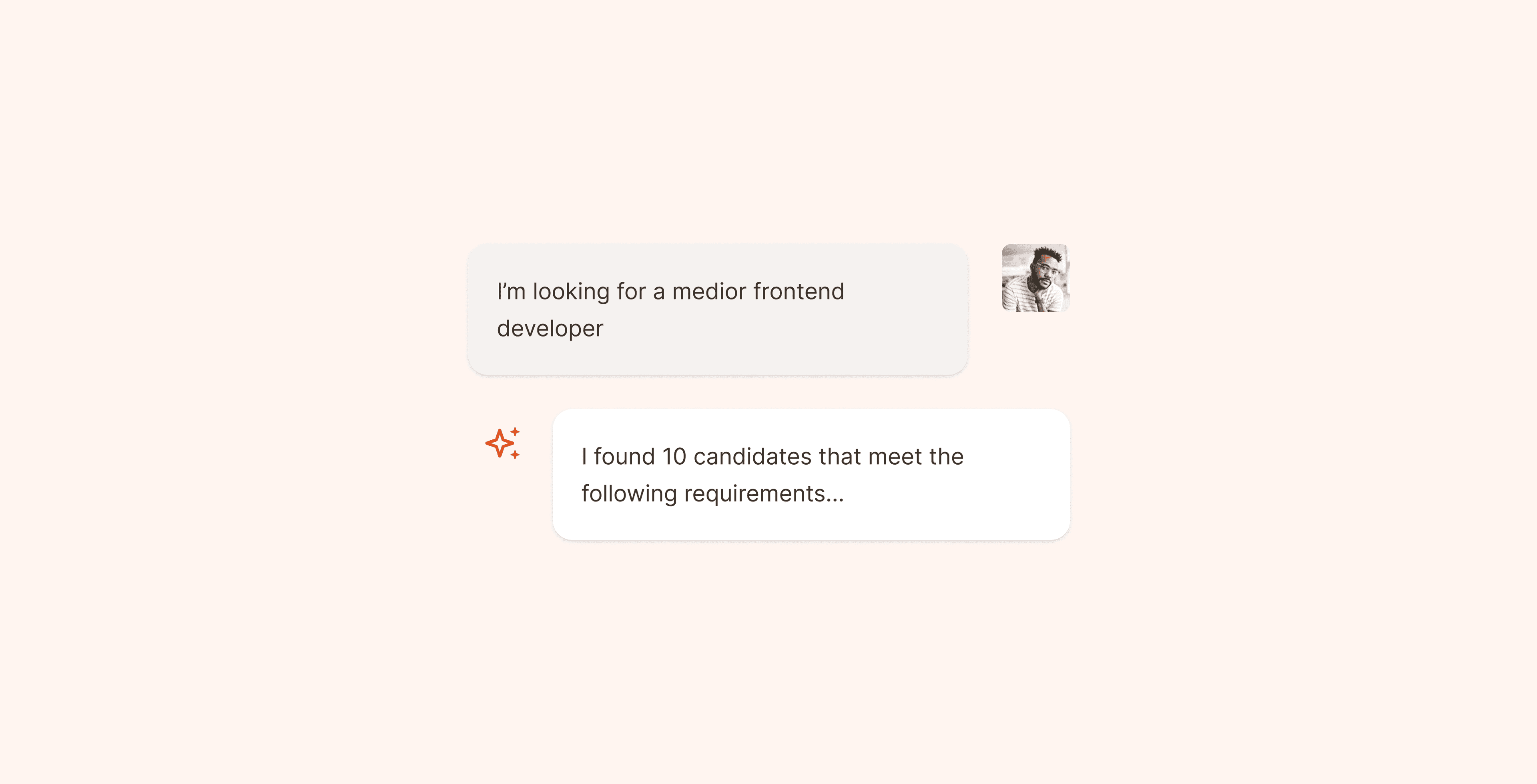
Adeptiq's AI search lets you find candidates by describing the profile you need in plain language. Here's how to get the best results.
Step 1: Go to Search a candidate
Navigate to the Search a candidate page in Adeptiq.

Step 2: Enter your search criteria
Type in the profile you're looking for using plain language. For example: "Java developer with 5 years experience in Brussels" or "Marketing manager with B2B background". The AI will search your database for matching candidates.

Step 3: Review your results
You'll see a list of candidates that match your search prompt. Each candidate receives a match score:
- Strong – The candidate meets the most important requirements.
- Partial – The candidate meets most requirements but not all. Review their profile to decide if they're a good fit.
- Limited – The candidate meets some requirements, but it's a long shot. This usually means there were no better matches in your database. Consider adjusting your search criteria.
For each candidate, there is also a small summary explaining why the candidate could be a good match.

Step 4: Refine your search
Not happy with the results? Send a new message to add or remove criteria. The AI will search again and update the results list accordingly. You can keep refining until you find the right candidates.

Understanding AI feedback
Sometimes the AI will give you feedback about your search:
- "Your search input seems too narrow or too complicated" – Your criteria are too strict and no matching candidates were found. Try dropping some requirements.
- "Your search input seems too broad" – Too many candidates match your criteria. Add more specific requirements to narrow down your results.