How to delete your account
Learn how to delete your account and all associated data.
If you decide to stop using Adeptiq, you can delete your account and all associated data. This action is permanent and cannot be undone.
Before you start
If you have an active paid subscription, you need to cancel it before you can delete your account. See the instructions at the bottom of this article.
Step 1: Open the user menu
Click on the user icon in the top right corner of Adeptiq.

Step 2: Go to Settings
In the dropdown menu that appears, select Settings.

Step 3: Navigate to Delete account
In the side navigation on the left of the page, click Delete account.

Step 4: Initiate account deletion
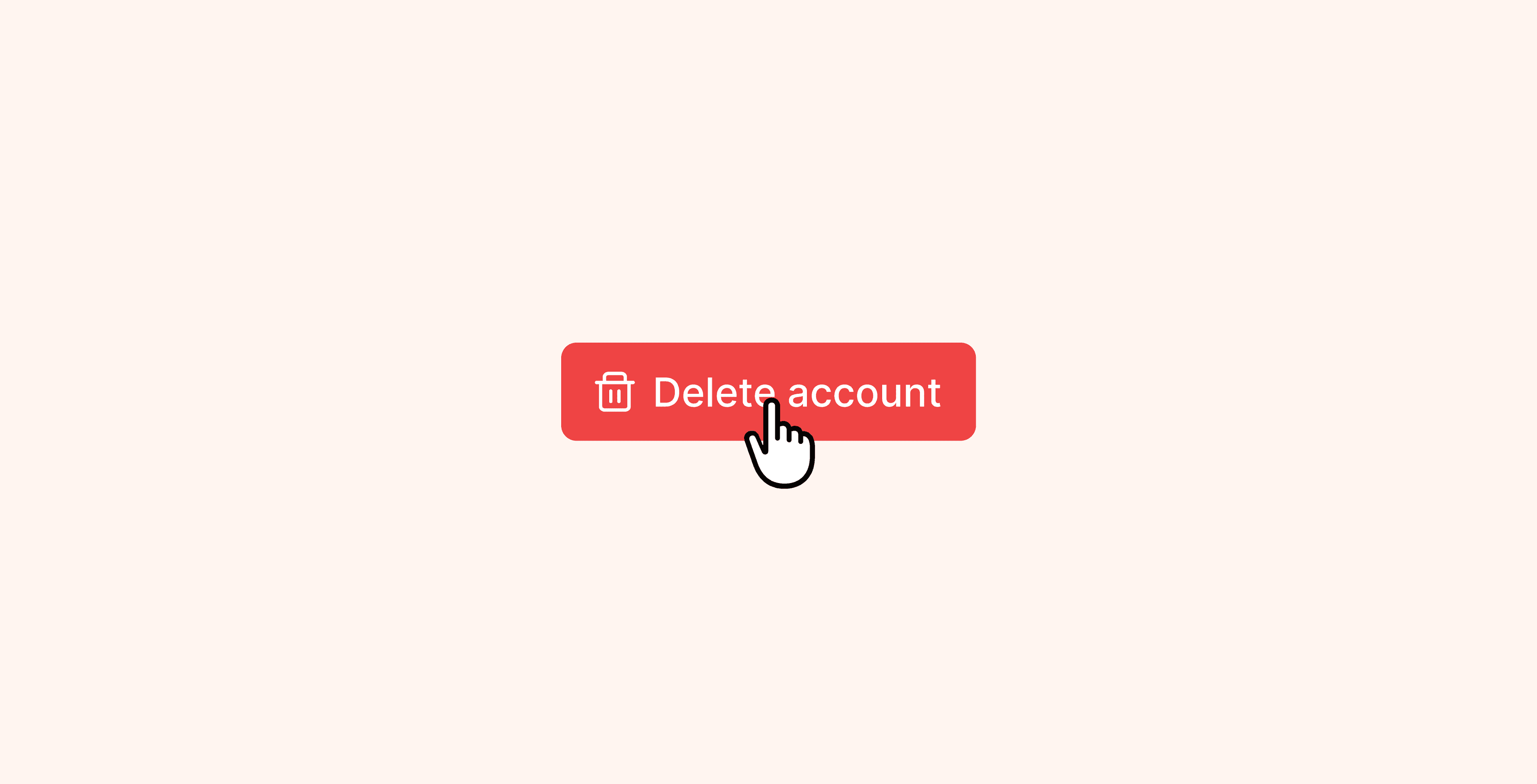
On the Delete account page, click the red Delete account button.
If this button is not available, you still have an active paid subscription. Cancel your subscription first (see instructions below), then return to this page.

Step 5: Confirm deletion
A confirmation popup appears. To proceed, type DELETE in the text field, then click the red Delete account button.

Step 6: Account deleted
Your account is now permanently deleted, including all your data: candidates, notes, and any other information stored in Adeptiq.
How to cancel your subscription first
If you have an active paid subscription, follow these steps before deleting your account:
- From the Delete account page, click Manage subscription. Alternatively, click Plan & Billing in the side navigation on the left.
- On the Plan & Billing page, click Manage payments and invoices in the top right corner.
- In the subscription overview, click Cancel subscription in the top right corner.
- On the cancellation confirmation page, click Cancel subscription again to confirm.
Your subscription is now cancelled. You can return to the Delete account page in Adeptiq to proceed with deleting your account.